1 परिचय
Thank you for choosing the LG 34 Inch UltraWide WQHD Curved Monitor. This manual provides essential information for the safe and efficient use of your new monitor. Please read it thoroughly before operating the device and keep it for future reference.
पैकेज सामग्री
- LG 34 Inch UltraWide Curved Monitor
- मॉनिटर स्टैंड (आधार और गर्दन)
- बिजली का केबल
- एचडीएमआई केबल
- डिस्प्लेपोर्ट केबल
- यूएसबी-सी केबल
- उपयोगकर्ता मैनुअल और वारंटी कार्ड
2. मुख्य विशेषताएं
- 34-inch WQHD UltraWide Curved Display: Expansive 21:9 screen (3440 x 1440) for enhanced productivity and immersive viewआईएनजी.
- HDR Display with 99% sRGB: Delivers vibrant, natural colors and distinct image layers, supporting HDR brightness performance.
- 120Hz उच्च ताज़ा दर: Ensures fluid scrolling and dynamic content for a comfortable visual experience.
- 5ms (GTG) Response Time: Provides quick pixel response for smooth motion.
- LG Switch for Multitasking & Eye Care: Enables quick split-screen functionality, customizable layouts, and Reader Mode to reduce eye strain.
- एडजस्टेबल स्टैंड: Supports height, tilt, and swivel adjustments for optimal viewकोण.
- बिल्ट-इन स्पीकर्स: Integrated audio for convenience.
- एकाधिक कनेक्टिविटी विकल्प: Includes DisplayPort and HDMI inputs.
3. सेटअप
3.1 स्टैंड को जोड़ना
Carefully remove the monitor and stand components from the packaging. Follow the instructions below to attach the stand to the monitor.
- खरोंच से बचने के लिए मॉनिटर को नरम, साफ सतह पर नीचे की ओर रखें।
- स्टैंड के नेक को मॉनिटर के पिछले पैनल से जोड़ें। सुनिश्चित करें कि यह ठीक से फिट हो जाए।
- Attach the stand base to the bottom of the stand neck. Tighten the screw(s) firmly to secure the base.
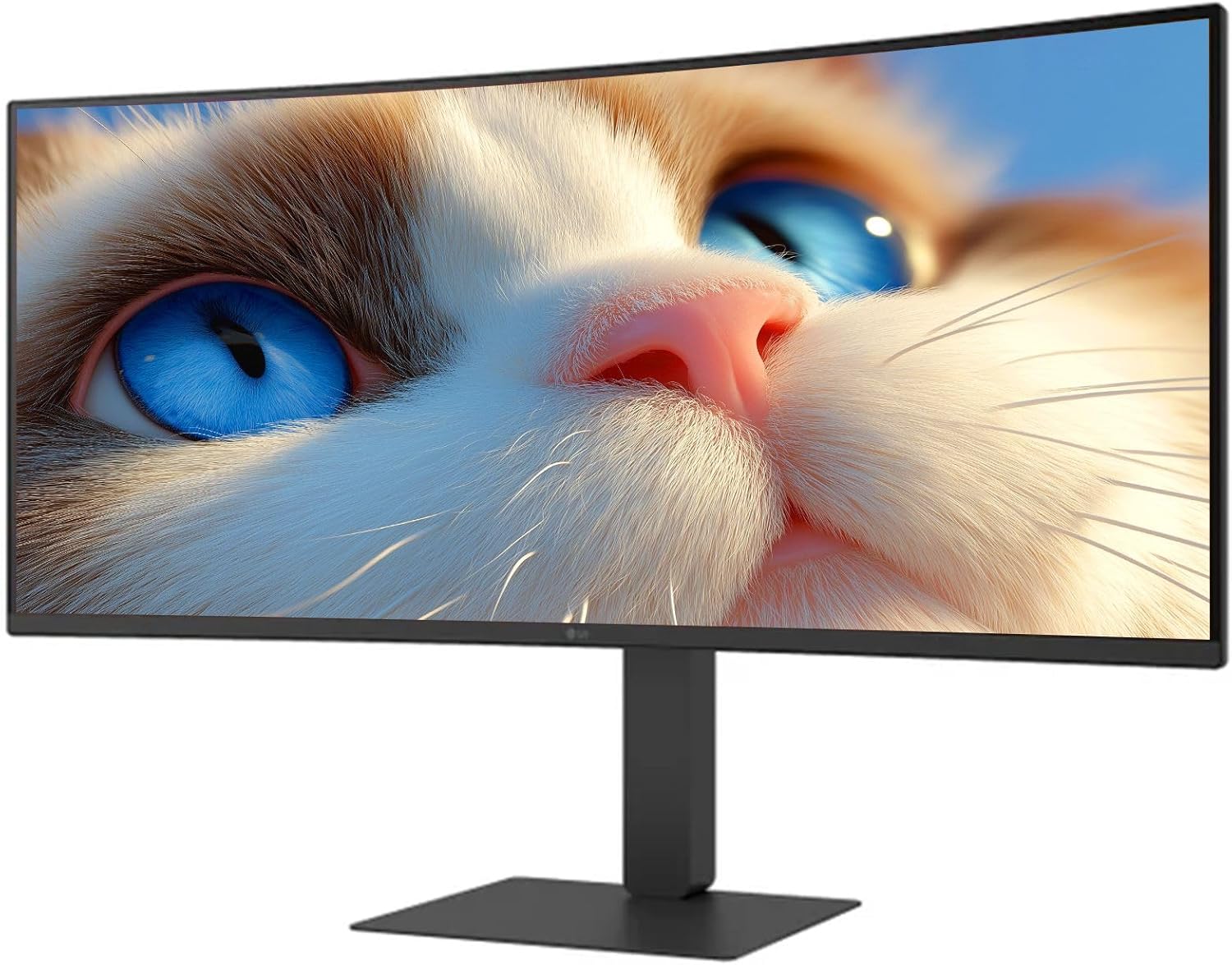
चित्र 1: सामने view of the LG 34 Inch UltraWide Curved Monitor with stand.

चित्र 2: पार्श्व view of the LG 34 Inch UltraWide Curved Monitor with stand.
3.2 मॉनिटर को कनेक्ट करना
उचित केबल का उपयोग करके मॉनिटर को अपने कंप्यूटर या अन्य डिवाइस से कनेक्ट करें।
- पावर केबल को मॉनिटर के पावर इनपुट से और फिर पावर आउटलेट से कनेक्ट करें।
- For video input, connect either an HDMI cable or a DisplayPort cable from your computer's graphics card to the corresponding port on the monitor.
- If your computer supports USB-C, you can use the provided USB-C cable for video, audio, and data transfer.

चित्र 3: रियर view of the monitor showing available ports for connectivity.
4. मॉनिटर का संचालन
4.1 पावर ऑन/ऑफ
Press the power button, usually located on the bottom center of the monitor, to turn the monitor on or off. The power indicator light will illuminate when the monitor is on.
4.2 ऑन-स्क्रीन डिस्प्ले (ओएसडी) मेनू
The OSD menu allows you to adjust various monitor settings. Use the joystick button (typically located on the bottom center) to navigate the menu.
- चित्र मोड: Select from various preset modes (e.g., Custom, Reader, HDR Effect) or customize settings like brightness, contrast, and sharpness.
- इनपुट: Manually select the input source (HDMI, DisplayPort, USB-C).
- सामान्य: Access settings for language, OSD transparency, and power-saving options.
4.3 स्टैंड को समायोजित करना
The monitor stand offers ergonomic adjustments for your comfort:
- ऊंचाई समायोजन: मॉनिटर को धीरे से ऊपर या नीचे धकेलें या खींचें ताकि वह आपकी इच्छित ऊंचाई तक पहुंच जाए।
- झुकाव समायोजन: Hold both sides of the monitor and tilt it forwards or backwards.
- कुंडा समायोजन: मॉनिटर को उसके आधार पर बायीं या दायीं ओर घुमाएं।
5. रखरखाव
5.1 मॉनिटर की सफाई
अपने मॉनिटर की दीर्घायु और इष्टतम प्रदर्शन सुनिश्चित करने के लिए, इन सफाई दिशानिर्देशों का पालन करें:
- सफाई से पहले मॉनिटर को हमेशा पावर आउटलेट से निकाल दें।
- एक नरम, लिंट-मुक्त कपड़े का उपयोग थोड़ा साफ करेंampपानी या विशेष स्क्रीन क्लीनर से साफ करें।
- क्लीनर को सीधे स्क्रीन पर स्प्रे न करें।
- Avoid using abrasive cleaners, solvents, or ammonia-based products.
6। समस्या निवारण
यदि आपको अपने मॉनिटर में कोई समस्या आती है, तो निम्नलिखित सामान्य समाधान देखें:
- शक्ति नही हैं: Ensure the power cable is securely connected to both the monitor and the power outlet. Check if the power outlet is functioning.
- कोई संकेत नहीं: Verify that the video cable (HDMI, DisplayPort, or USB-C) is correctly connected to both the monitor and your computer. Ensure the correct input source is selected in the OSD menu.
- टिमटिमाती स्क्रीन: Check the video cable connection. Try adjusting the refresh rate in your computer's display settings.
- छवि विरूपण: Reset the monitor to factory settings via the OSD menu. Ensure your computer's display resolution matches the monitor's native resolution (3440 x 1440).
- No Sound from Built-in Speakers: Check the volume settings on both the monitor and your computer. Ensure the audio output is correctly routed to the monitor.
If the problem persists after trying these steps, please contact LG customer support.
7. विनिर्देश
| विशेषता | विनिर्देश |
|---|---|
| ब्रांड | LG |
| मॉडल संख्या | 195174134092 |
| स्क्रीन का साईज़ | 34 इंच |
| अधिकतम रिज़ॉल्यूशन | डब्ल्यूक्यूएचडी (3440 x 1440) |
| ताज़ा दर | 120हर्ट्ज |
| प्रतिक्रिया समय | 5ms (GTG) |
| आस्पेक्ट अनुपात | 21:9 |
| रंगों के सारे पहलू | एसआरजीबी 99% |
| एचडीआर समर्थन | एचडीआर10 |
| Viewइंग एंगल | 178 degrees (R/L), 178 degrees (U/D) |
| डिस्प्ले कनेक्टर | 1 x HDMI, 1 x डिस्प्लेपोर्ट |
| आई रिलीफ फीचर्स | Low blue light, Flicker-free, Anti-glare, Reader Mode |
| अंतर्निहित स्पीकर | हाँ |
| उत्पाद आयाम (स्टैंड के साथ) | 8.7"डी x 32.1"डब्ल्यू x 19.2"एच |
| उत्पाद का वजन (स्टैंड के साथ) | 16.8 पाउंड |
8. वारंटी और समर्थन
Your LG 34 Inch UltraWide Curved Monitor comes with a standard manufacturer's warranty. Please refer to the warranty card included in your package for detailed terms and conditions.
For technical support, service, or further inquiries, please visit the official LG website or contact their customer service hotline. Keep your purchase receipt and product serial number (located on the back of the monitor) handy when contacting support.