1 परिचय
This manual provides essential information for the HP 17.3-inch Touchscreen Laptop, model 17-cp3602nr. It covers initial setup, basic operation, maintenance guidelines, and troubleshooting tips to ensure optimal performance and longevity of your device. Please read this manual thoroughly before using your laptop.
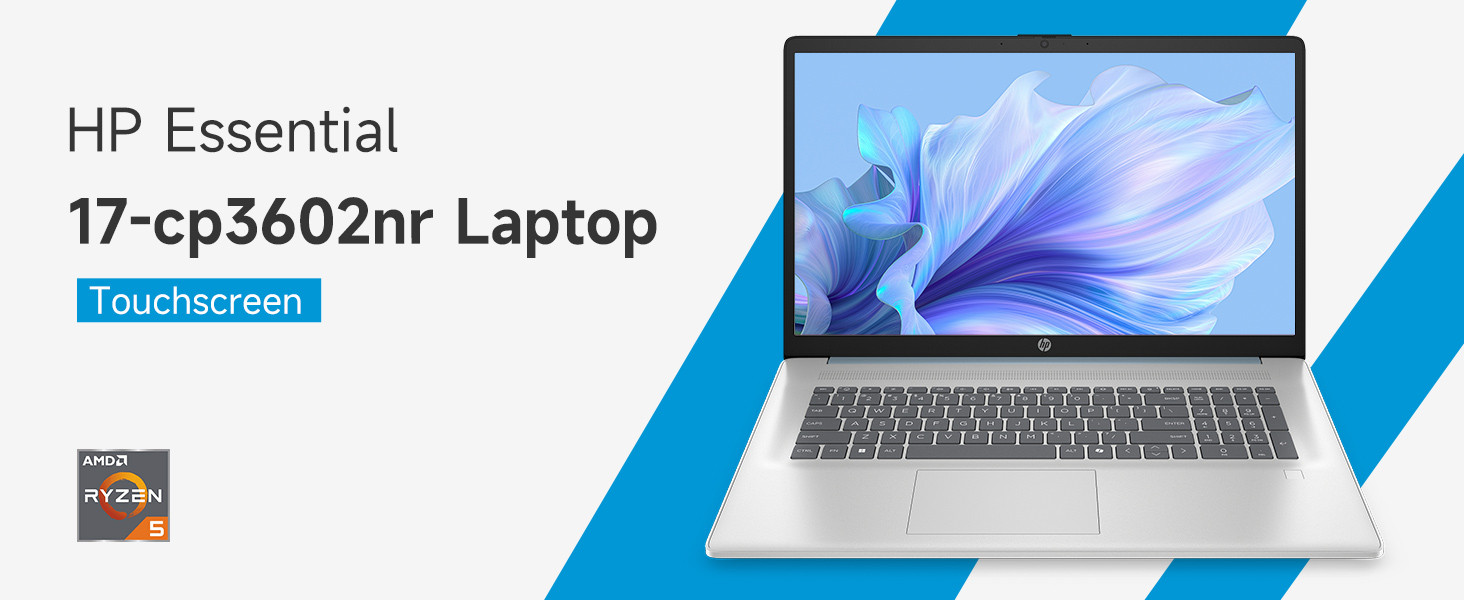
छवि: ऊपरview of the HP 17.3-inch Touchscreen Laptop highlighting its main features.
2. सेटअप
2.1 अनबॉक्सिंग और प्रारंभिक निरीक्षण
अपने लैपटॉप और सभी सहायक उपकरणों को सावधानीपूर्वक पैकेजिंग से बाहर निकालें। सुनिश्चित करें कि सभी घटक मौजूद हैं:
- HP 17.3-inch Touchscreen Laptop
- पावर एडाप्टर और पावर कॉर्ड
- दस्तावेज़ीकरण (त्वरित आरंभ मार्गदर्शिका, वारंटी जानकारी)
Inspect the laptop for any physical damage. If any damage is found or components are missing, contact your retailer or HP support immediately.
2.2 पावर एडाप्टर कनेक्ट करना
Connect the power adapter to the laptop's AC smart pin port and then plug the power cord into a wall outlet. The laptop can be used while charging, but it is recommended to fully charge the battery before first use.
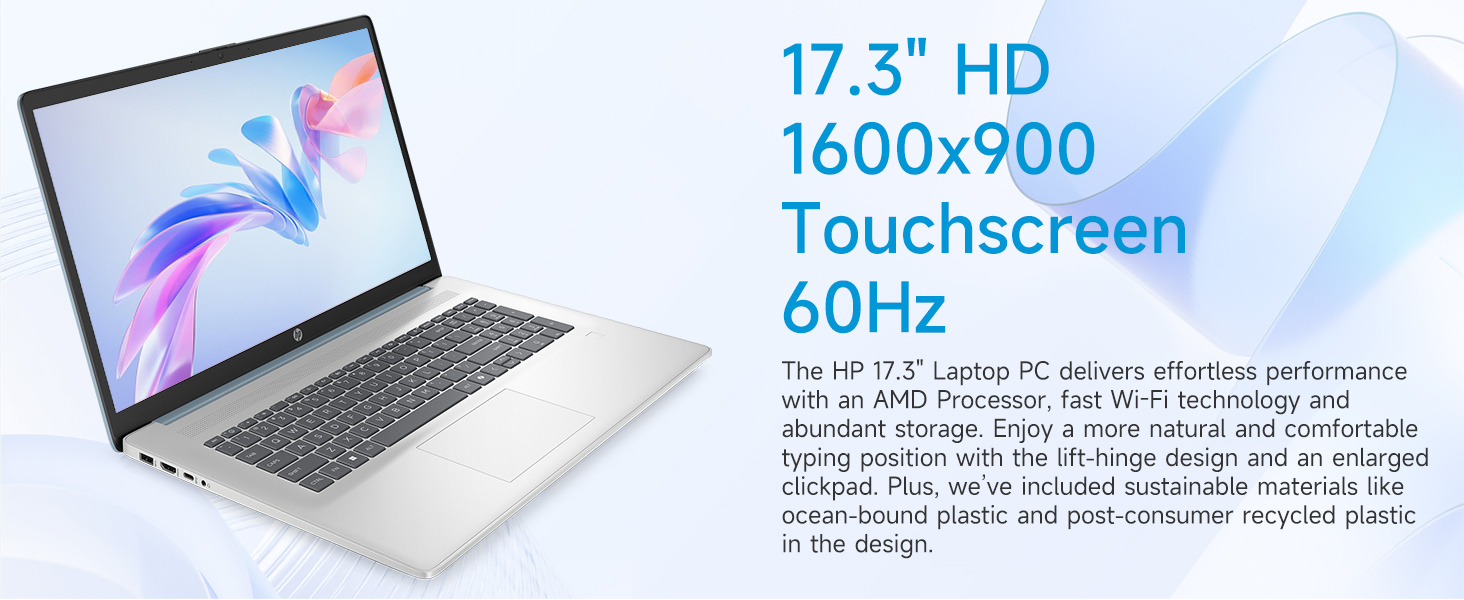
Image: Laptop ports and their locations, including the AC smart pin.
2.3 प्रारंभिक पावर ऑन और विंडोज 11 सेटअप
Press the power button to turn on the laptop. Follow the on-screen instructions to complete the Windows 11 Home setup process. This includes:
- अपना क्षेत्र और कीबोर्ड लेआउट चुनना.
- Connecting to a Wi-Fi network (Wi-Fi 6 supported).
- Microsoft खाते से साइन इन करना या खाता बनाना.
- पिन या पासवर्ड सेट करना।
- Configuring privacy settings.
2.4 फिंगरप्रिंट रीडर सेटअप
During the Windows 11 setup or later via Windows Settings, you can configure the integrated fingerprint reader for secure login. Follow the prompts to register your fingerprints.
3. अपने लैपटॉप का संचालन
3.1 बुनियादी नेविगेशन
Your HP laptop features a 17.3-inch HD+ (1600 x 900) touchscreen display, a touchpad, and a full-size keyboard for navigation.
- टच स्क्रीन: Use gestures similar to a smartphone or tablet for direct interaction with the display.
- टचपैड: Supports multi-touch gestures for scrolling, zooming, and more.
- कीबोर्ड: Includes a numeric keypad for efficient data entry.
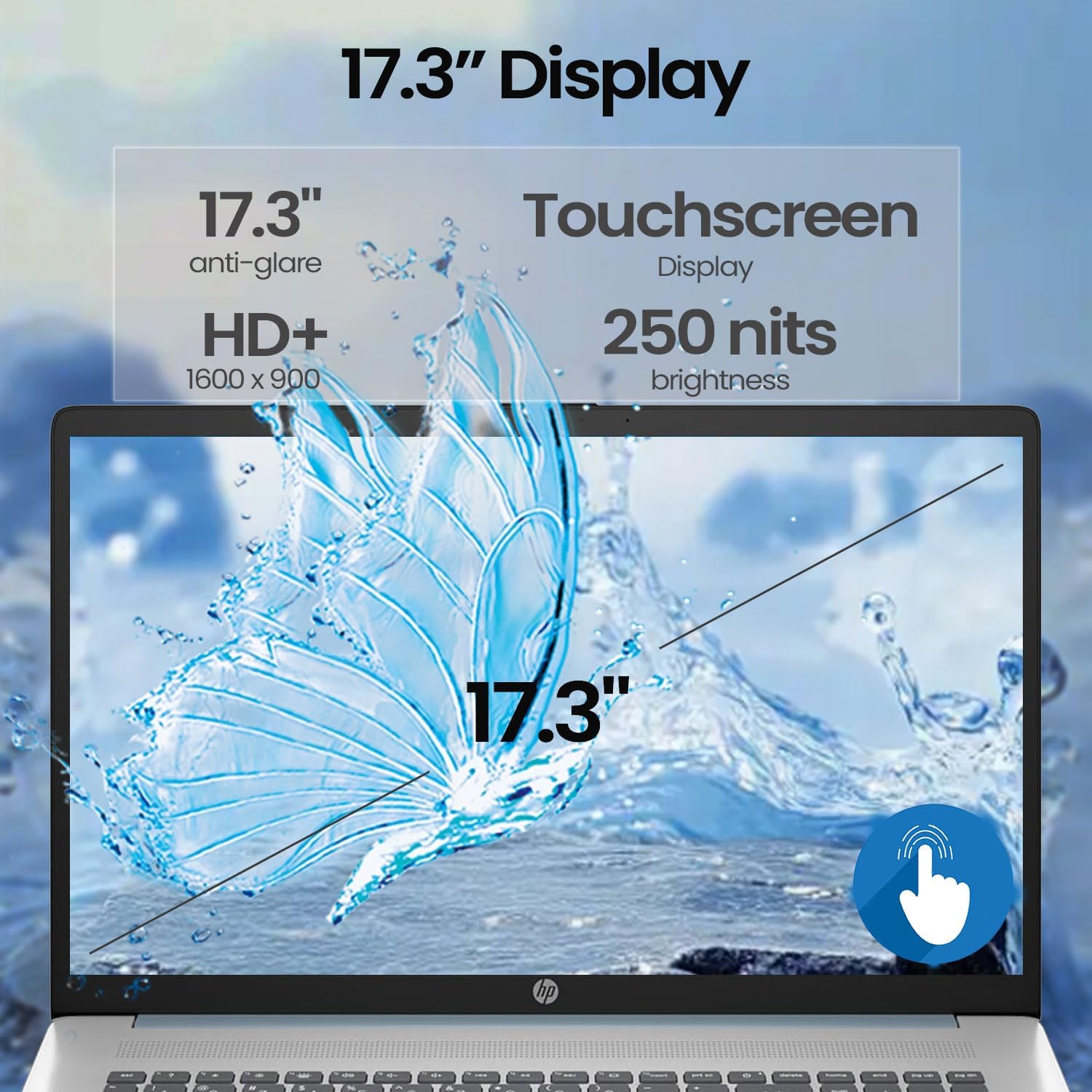
Image: A finger interacting with the laptop's touchscreen display.
3.2 बैकलिट कीबोर्ड
The keyboard features backlighting for improved visibility in low-light conditions. The backlight can typically be toggled or adjusted using a dedicated function key (often Fn + F5 or similar, refer to your specific model's keyboard layout).
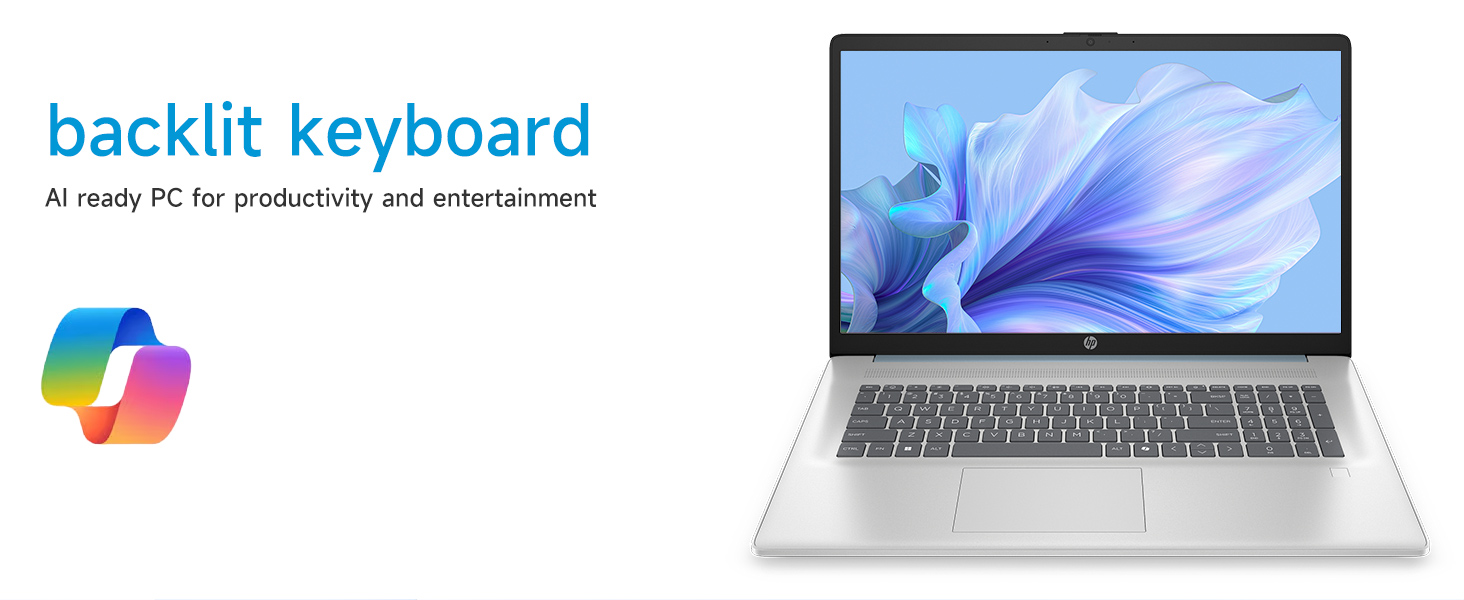
Image: The laptop's backlit keyboard in operation.
3.3 Using the Fingerprint Reader
Once configured, simply place your registered finger on the fingerprint reader (usually located near the keyboard or power button) to log in to Windows or authenticate applications.

Image: Illustration of the fingerprint reader for secure access.
3.4 बाहरी डिवाइस कनेक्ट करना
आपके लैपटॉप में कई पोर्ट मौजूद हैं:
- USB Type-C 5Gbps signaling rate: आधुनिक यूएसबी-सी उपकरणों को जोड़ने के लिए।
- USB Type-A 5Gbps signaling rate (x2): माउस, कीबोर्ड या बाहरी ड्राइव जैसे मानक यूएसबी उपकरणों के लिए।
- एचडीएमआई 1.4बी: Connects to external monitors or TVs for extended display.
- हेडफोन/माइक्रोफोन कॉम्बो जैक: For connecting headsets or external audio devices.
Simply plug the compatible device into the appropriate port. Most devices are plug-and-play and will be recognized automatically by Windows.
3.5 Webकैम उपयोग
एकीकृत webcam can be used for video calls, online meetings, and capturing photos/videos. Access it through applications like Camera, Microsoft Teams, Zoom, or other communication software.
4. रखरखाव
4.1 अपने लैपटॉप की सफाई
- स्क्रीन: एक नरम, लिंट-मुक्त कपड़े का उपयोग थोड़ा साफ करेंampपानी या स्क्रीन-क्लीनिंग सॉल्यूशन से धोएँ। कठोर रसायनों से बचें।
- चेसिस और कीबोर्ड: एक मुलायम, सूखे कपड़े का प्रयोग करें। जिद्दी गंदगी के लिए, हल्के सूखे कपड़े का प्रयोग करें।amp cloth can be used. Avoid getting moisture into ports or vents.
- Vents: Periodically use compressed air to clear dust from the cooling vents to prevent overheating.
4.2 बैटरी केयर
- बैटरी को बार-बार पूरी तरह से डिस्चार्ज करने से बचें।
- यदि लैपटॉप का उपयोग लंबे समय तक न किया जाए तो उसे ठंडी, सूखी जगह पर रखें।
- केवल मूल HP पावर एडाप्टर का ही उपयोग करें।
4.3 सॉफ़्टवेयर अद्यतन
एचपी के आधिकारिक सहायता केंद्र से नियमित रूप से विंडोज अपडेट और ड्राइवर अपडेट की जांच करें और उन्हें इंस्टॉल करें। webसिस्टम की स्थिरता, सुरक्षा और इष्टतम प्रदर्शन सुनिश्चित करने के लिए साइट।
4.4 भंडारण प्रबंधन
समय-समय पर अनावश्यक सफाई करें files, uninstall unused applications, and manage your 512GB PCIe NVMe M.2 SSD to maintain fast boot-up and data transfer speeds.
5। समस्या निवारण
This section addresses common issues you might encounter with your HP laptop.
5.1 बिजली संबंधी समस्याएं
- लैपटॉप चालू नहीं होता: सुनिश्चित करें कि पावर एडाप्टर लैपटॉप और चालू पावर आउटलेट दोनों से ठीक से जुड़ा हुआ है। किसी दूसरे आउटलेट से कनेक्ट करके देखें। यदि बैटरी पूरी तरह से डिस्चार्ज हो गई है, तो लैपटॉप चालू होने से पहले उसे चार्ज होने में कुछ मिनट लग सकते हैं।
- बैटरी चार्ज नहीं: Verify the power adapter and cable are not damaged. Check the charging indicator light on the laptop.
5.2 प्रदर्शन संबंधी समस्याएं
- स्क्रीन पर कोई छवि नहीं: Connect an external monitor via HDMI to check if the issue is with the laptop's internal display. Restart the laptop.
- टचस्क्रीन काम नहीं कर रही है: लैपटॉप को रीस्टार्ट करें। सुनिश्चित करें कि डिस्प्ले ड्राइवर अपडेटेड हैं।
5.3 नेटवर्क कनेक्टिविटी समस्याएँ
- वाई-फ़ाई से कनेक्ट नहीं हो सकता: सुनिश्चित करें कि विंडोज़ सेटिंग्स में वाई-फ़ाई सक्षम है। अपने राउटर और मॉडेम को पुनः प्रारंभ करें। अपडेट किए गए वाई-फ़ाई ड्राइवरों की जाँच करें।
5.4 Input Device Problems
- Keyboard or touchpad unresponsive: लैपटॉप को रीस्टार्ट करें। डिवाइस मैनेजर में अपडेटेड ड्राइवर चेक करें।
- फिंगरप्रिंट रीडर काम नहीं कर रहा है: Ensure your fingerprints are properly enrolled in Windows Hello settings. Clean the sensor.
For persistent issues, consult the HP support webसाइट पर जाएं या एचपी ग्राहक सेवा से संपर्क करें।
6. विनिर्देश
Detailed technical specifications for the HP 17.3-inch Touchscreen Laptop (Model 17-cp3602nr).
| विशेषता | विनिर्देश |
|---|---|
| ब्रांड | HP |
| मॉडल नाम | 17-cp3602nr |
| प्रोसेसर | एएमडी रायज़ेन 5 7430यू (6 कोर, 12 थ्रेड, 4.3 GHz तक) |
| GRAPHICS | AMD Radeon ग्राफ़िक्स (एकीकृत) |
| टक्कर मारना | 16 जीबी डीडीआर4 एसडीआरएएम (3200 मेगाहर्ट्ज) |
| भंडारण | 512 जीबी पीसीआईई एनवीएमई एम.2 एसएसडी |
| प्रदर्शन | 17.3-inch HD+ (1600 x 900) Touchscreen, Anti-glare, 250 nits, 60% NTSC, 60 Hz |
| ऑपरेटिंग सिस्टम | विंडोज 11 होम |
| कनेक्टिविटी | वाई-फाई 6 (802.11ax) |
| बंदरगाहों | 1x USB Type-C 5Gbps, 2x USB Type-A 5Gbps, 1x HDMI 1.4b, 1x Headphone/Microphone Combo, 1x AC Smart Pin |
| विशेष लक्षण | Backlit Keyboard, Fingerprint Reader, Numeric Keypad, Webकैम |
| Dimensions (L x W x Thickness) | 15.78" x 10.15" x 0.81" |
| रंग | नीला |
| यूपीसी | 199485902807 |
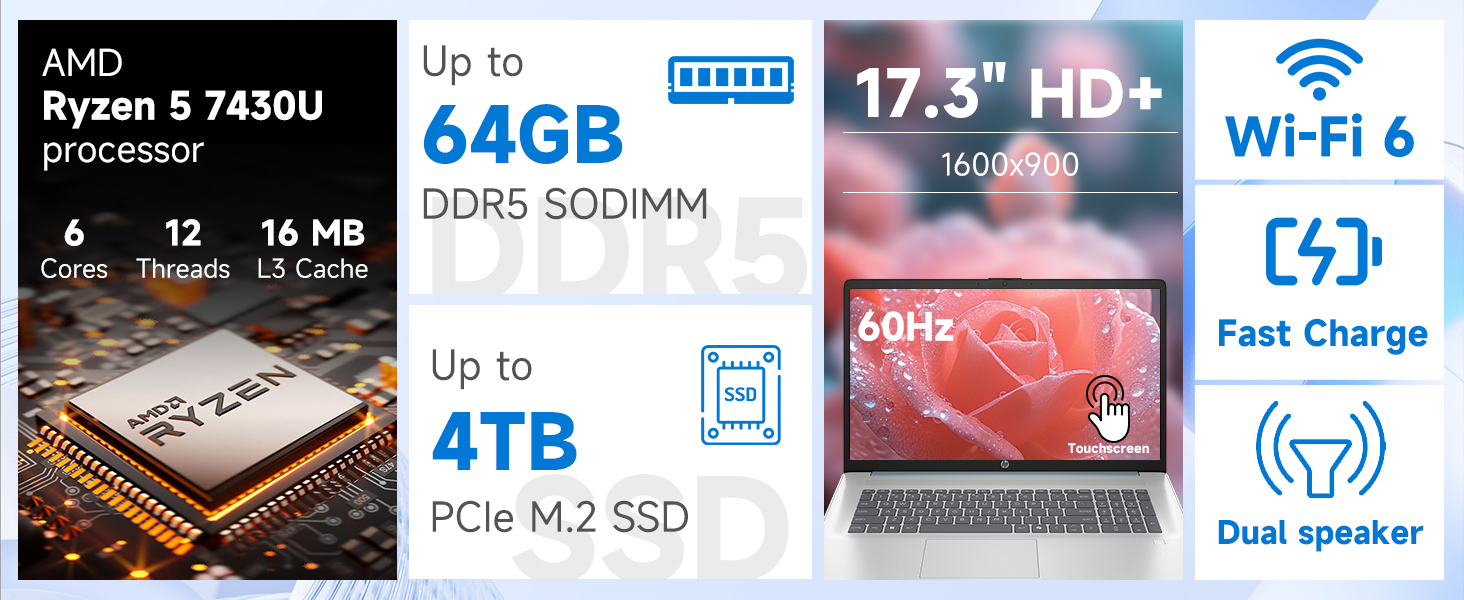
छवि: विस्तृत view of the AMD Ryzen 5 7430U processor specifications.
7. वारंटी और समर्थन
Your HP laptop comes with a standard manufacturer's warranty. For specific warranty terms and conditions, please refer to the documentation included with your product or visit the official HP support webतकनीकी सहायता, ड्राइवर डाउनलोड और अन्य सहायता के लिए, कृपया इस वेबसाइट पर जाएँ। support.hp.com.