1 परिचय
This manual provides comprehensive instructions for the installation, operation, and maintenance of your GIGABYTE B850 Eagle WIFI7 ICE AMD AM5 LGA 1718 Motherboard. Designed for AMD Ryzen 9000, 8000, and 7000 Series Processors, this ATX motherboard offers unparalleled performance, high-grade storage standards, and outstanding connectivity.
Key features include DDR5 compatibility with 4 DIMM slots, an 8+2+2 power design, PCIe 5.0 support, three M.2 slots, USB-C connectivity, WIFI7, and 2.5GbE LAN. It also incorporates DIY-friendly features such as M.2 EZ-Latch, PCIe EZ-Latch, and Wi-Fi EZ-Plug for simplified assembly and upgrades.

Figure 1: GIGABYTE B850 Eagle WIFI7 ICE Motherboard and Retail Packaging. This image displays the motherboard alongside its retail box, highlighting the product's aesthetic and branding.
2. सेटअप और इंस्टालेशन
Proper installation is crucial for optimal performance and system stability. Follow these steps carefully.
2.1. CPU Installation (AMD Socket AM5)
Ensure the CPU socket lever is open. Carefully align your AMD Ryzen processor with the socket, matching the triangular markers on both the CPU and the socket. Gently place the CPU into the socket without applying force. Close the lever to secure the CPU.
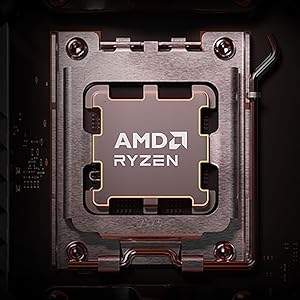
चित्र 2: क्लोज़-अप view of the AMD Ryzen CPU socket on the motherboard, ready for processor installation.
2.2. मेमोरी (डीडीआर5) इंस्टॉलेशन
This motherboard supports DDR5 memory modules across 4 DIMM slots. For dual-channel operation, refer to the motherboard manual for recommended slot configurations. Open the clips on both ends of the DIMM slot, align the memory module with the notch, and press firmly until the clips snap into place.

Figure 3: Illustration of DDR5 memory modules being installed into the motherboard's DIMM slots.
2.3. स्टोरेज (एम.2 एसएसडी) इंस्टॉलेशन
The motherboard features three M.2 slots with PCIe 5.0 support. Utilize the M.2 EZ-Latch system for tool-less installation. Simply open the latch, insert your M.2 SSD, and close the latch to secure it. Ensure thermal pads are correctly placed under the M.2 heatsinks for optimal cooling.
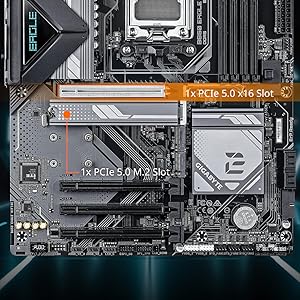
Figure 4: Demonstrates the easy installation of an M.2 SSD using the EZ-Latch mechanism, with a heatsink cover.
2.4. ग्राफ़िक्स कार्ड (PCIe) की स्थापना
Insert your graphics card into the primary PCIe 5.0 x16 slot. The PCIe EZ-Latch simplifies removal. Ensure the card is fully seated and secured by the latch. Connect any necessary PCIe power cables from your power supply to the graphics card.
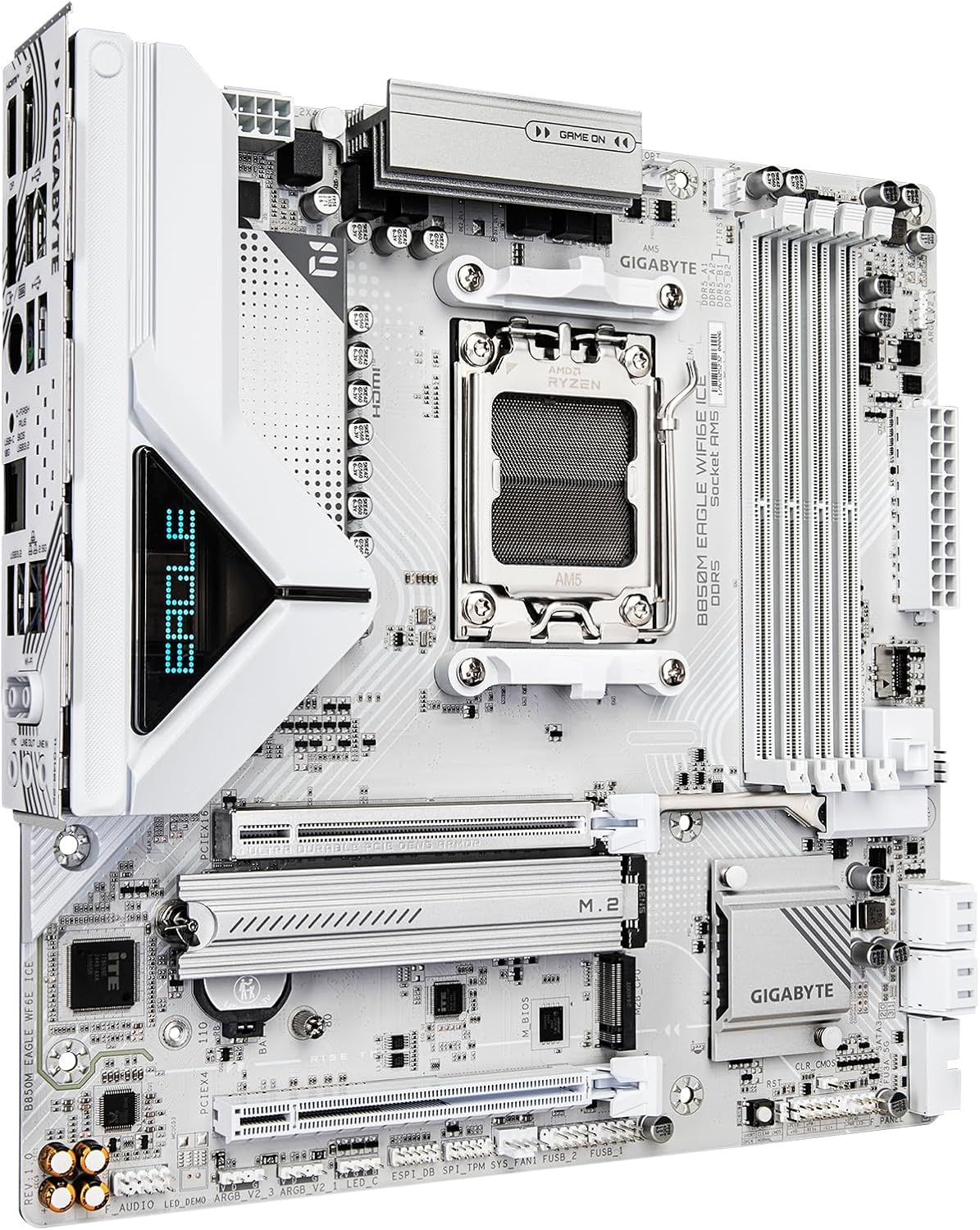
चित्र 5: एक कोणीय view of the motherboard, highlighting the PCIe slots and M.2 slots with their respective heatsinks.
2.5. रियर आई/ओ पैनल कनेक्शन
Connect your peripherals to the appropriate ports on the rear I/O panel. This includes USB devices, display cables (HDMI/DisplayPort), and network cables (2.5GbE LAN). For wireless connectivity, attach the provided Wi-Fi antenna to the Wi-Fi EZ-Plug connectors.
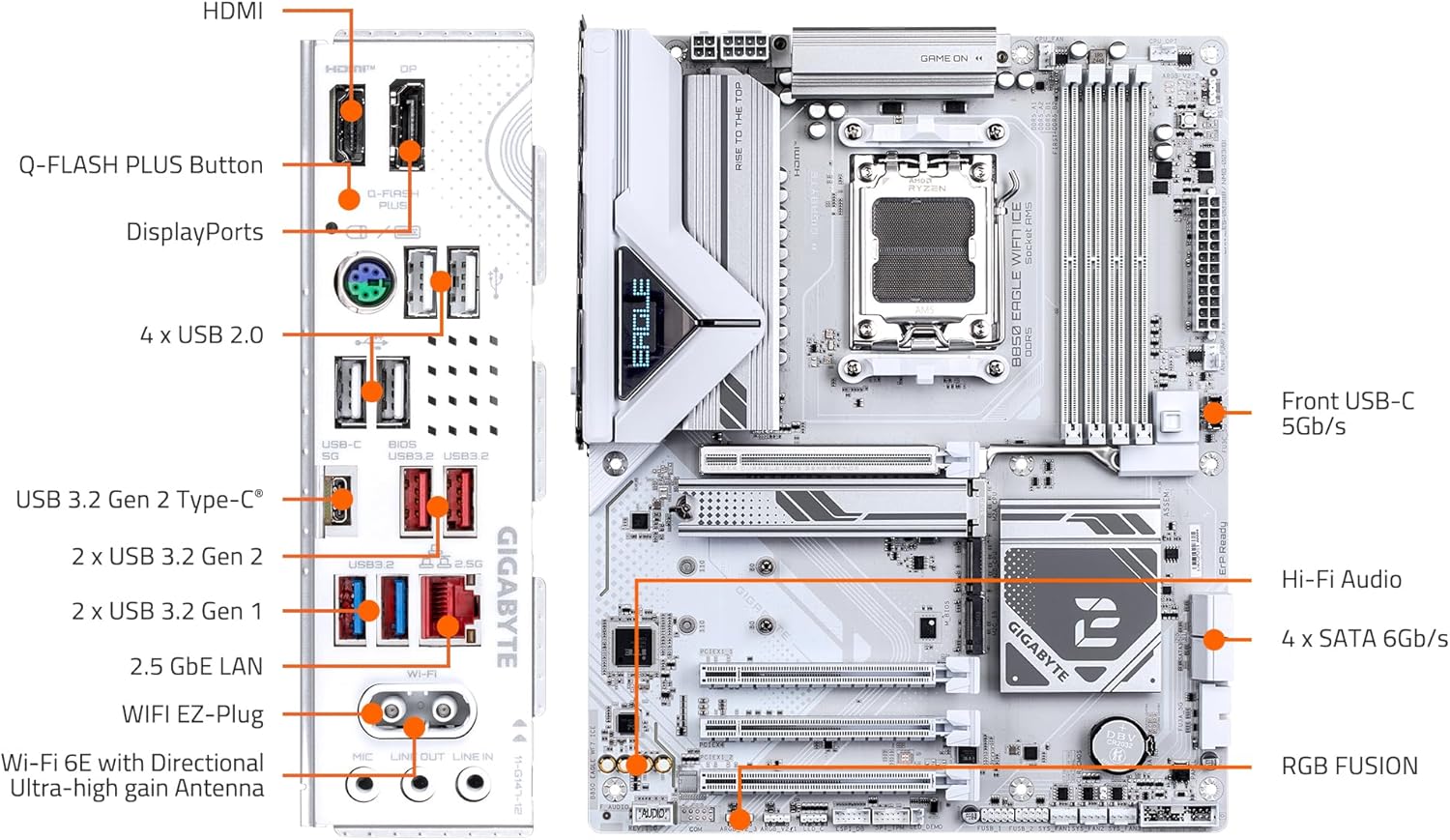
Figure 6: Detailed diagram of the motherboard's rear I/O panel, labeling all available ports including USB, HDMI, DisplayPort, LAN, and Wi-Fi antenna connectors.
2.6. बिजली कनेक्शन
Connect the 24-pin ATX power connector and the 8-pin CPU power connector(s) from your power supply to the motherboard. Ensure all connections are secure.
3. मदरबोर्ड का संचालन
Once your system is assembled, power it on and enter the BIOS/UEFI setup to configure settings, enable XMP/EXPO profiles for memory, and set boot priorities. Refer to the GIGABYTE website for the latest BIOS updates and utility software.
3.1. BIOS/UEFI कॉन्फ़िगरेशन
Access the BIOS by pressing the designated key (usually DEL or F2) during system startup. Here you can adjust various system parameters, including CPU settings, memory profiles (XMP/EXPO), fan curves, and boot device order. It is recommended to update the BIOS to the latest stable version for optimal compatibility and performance.
3.2. सॉफ्टवेयर और ड्राइवर
Install the necessary drivers for your motherboard's chipset, audio, LAN, and Wi-Fi from the GIGABYTE support website. Additionally, install GIGABYTE's utility software for features like RGB Fusion (for lighting control) and system monitoring.
4. रखरखाव
Regular maintenance helps prolong the lifespan of your motherboard and ensures stable operation.
- धूल हटाना: समय-समय पर संपीड़ित हवा का उपयोग करके मदरबोर्ड और उसके पुर्जों से धूल साफ़ करें। सफाई से पहले सुनिश्चित करें कि सिस्टम बंद हो और प्लग निकाला हुआ हो।
- तार प्रबंधन: Ensure cables are neatly routed to prevent obstruction of airflow and accidental disconnections.
- सॉफ्टवेयर अपडेट: Keep your BIOS, drivers, and operating system updated to benefit from performance improvements and security patches.
5। समस्या निवारण
If you encounter issues, consult the following common troubleshooting steps:
- कोई पावर नहीं/कोई बूट नहीं: Double-check all power connections (24-pin ATX, 8-pin CPU, GPU PCIe power). Ensure the power supply is switched on.
- कोई प्रदर्शन नहीं: Verify that your monitor is connected to the graphics card (or integrated graphics if applicable) and that the display cable is secure. Reseat the graphics card and RAM modules.
- सिस्टम अस्थिरता/क्रैश: This can often be related to memory. Try running memory diagnostic tools or testing RAM modules individually. Ensure CPU and GPU temperatures are within normal operating ranges.
- BIOS Issues: If you experience issues after a BIOS update or configuration change, use the Clear CMOS button on the rear I/O panel to reset BIOS settings to default.
6. विनिर्देश
| विशेषता | विनिर्देश |
|---|---|
| ब्रांड | गीगाबाइट |
| मॉडल नाम | B850 EAGLE WIFI7 ICE |
| सीपीयू सॉकेट | सॉकेट AM5 |
| संगत प्रोसेसर | AMD Ryzen 9000 / Ryzen 8000 / Ryzen 7000 Series Processors |
| चिपसेट प्रकार | एएमडी बी850 |
| रैम मेमोरी प्रौद्योगिकी | डीडीआर5 |
| मेमोरी स्पीड | 5200 मेगाहर्ट्ज (EXPO/XMP के माध्यम से इससे अधिक गति का समर्थन करता है) |
| मेमोरी DIMMs | 4*DIMMs |
| पावर डिजाइन | 8+2+2 Phase Digital VRM |
| पीसीआईई स्लॉट | 1x PCIe 5.0 x16 स्लॉट |
| एम.2 स्लॉट | 3x M.2 Slots (PCIe 5.0 support) |
| लैन | 2.5 जीबीई लैन |
| वायरलेस संपर्क | वाईफ़ाई7 |
| यूएसबी पोर्ट | USB-C, USB 3.2 Gen 2, USB 3.2 Gen 1, USB 2.0 |
| बनाने का कारक | एटीएक्स |
| उत्पाद आयाम | 12.01 x 8.82 x 1 इंच |
| आइटम का वजन | 3.63 पाउंड |
7. आधिकारिक उत्पाद वीडियो
7.1. उत्पाद खत्मview
वीडियो 1: एक संक्षिप्त अवलोकनview of the GIGABYTE B850 Eagle WIFI7 ICE Motherboard, showcasing its design and key features from the manufacturer.
7.2. GIGABYTE B850 Motherboards Overview
वीडियो 2: एक ओवरview presented by Gigabyte, detailing the features and capabilities across the B850 motherboard series, including the Eagle WIFI7 ICE model.
8. वारंटी और समर्थन
For warranty information, please refer to the official GIGABYTE website or the documentation included with your product. Technical support and driver downloads are available through the GIGABYTE support portal.
GIGABYTE is committed to providing reliable products and support. Should you require assistance, please visit the official GIGABYTE support page for your specific motherboard model.


