
1 परिचय
This manual provides detailed instructions for the installation, operation, maintenance, and troubleshooting of your Micro Center CPU Motherboard Combo, featuring the Intel Core i7-14700KF processor and the MSI PRO Z790-P WiFi motherboard. Please read this manual thoroughly before beginning installation to ensure proper setup and optimal performance.
2. पैकेज सामग्री
सुनिश्चित करें कि नीचे सूचीबद्ध सभी आइटम आपके पैकेज में मौजूद हैं। अगर कोई आइटम गायब या क्षतिग्रस्त है, तो कृपया अपने विक्रेता से संपर्क करें।
- Intel Core i7-14700KF Processor
- MSI PRO Z790-P WiFi Motherboard
- 3 x M.2 Clips
- 2 x SATA केबल
- वाई-फाई एंटीना
- आई/ओ शील्ड
- चालक डीवीडी
- European Union Regulatory Notice (Document)
- Quick Installation Guide (Document)

3. मुख्य विशेषताएं
This combo offers advanced features for high-performance computing:
3.1. Intel Core i7-14700KF Processor
- कोर कॉन्फ़िगरेशन: 20 Cores (8 Performance-cores + 12 Efficient-cores) and 28 Threads.
- अधिकतम क्लॉक स्पीड: Up to 5.6 GHz.
- प्रदर्शन: Designed for demanding tasks including gaming, video editing, and multitasking.
- ग्राफिक्स: Requires a discrete graphics card (KF designation).

3.2. MSI PRO Z790-P WiFi Motherboard
- सीपीयू सॉकेट: LGA 1700, supporting Intel 12th, 13th, and 14th Gen processors.
- याद: Supports DDR5 memory, with speeds up to 7000+(OC) MHz.
- विस्तार स्लॉट: ग्राफिक्स कार्ड के लिए PCIe 5.0 x16 स्लॉट।
- भंडारण: Four PCIe 4.0 M.2 slots and six SATA 6Gb/s ports.
- कनेक्टिविटी: Integrated Wi-Fi and USB 3.2 Gen 2x2 Type-C for high-speed data transfer.
- पावर डिज़ाइन: 14+1+1 DRPS with 55A DrMOS for stable power delivery.
- थर्मल समाधान: Extended Heatsink, MOSFET thermal pads (7W/mK), and M.2 Shield Frozr.
- पीसीबी डिजाइन: 6-layer PCB with 2oz thickened copper for durability and performance.


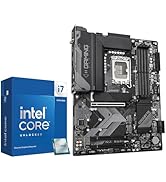

4. सेटअप गाइड
4.1. सुरक्षा सावधानियाँ
- किसी भी उपकरण को छूने से पहले हमेशा पावर कॉर्ड को दीवार के सॉकेट से डिस्कनेक्ट कर दें।
- स्थैतिक विद्युत को समाप्त करने के लिए एंटी-स्टैटिक रिस्ट स्ट्रैप पहनें या बार-बार किसी ग्राउंडेड धातु की वस्तु को स्पर्श करें।
- संवेदनशील सर्किट को छूने से बचने के लिए घटकों को उनके किनारों से पकड़ें।
4.2. घटक स्थापना
Follow these steps for installing the CPU and motherboard into your system:
- सीपीयू स्थापना:
- मदरबोर्ड पर सीपीयू सॉकेट लीवर खोलें।
- Carefully align the Intel Core i7-14700KF processor with the LGA 1700 socket, ensuring the gold triangle on the CPU matches the triangle on the socket.
- सीपीयू को बिना ज़ोर लगाए धीरे से सॉकेट में डालें।
- सीपीयू को सुरक्षित करने के लिए सॉकेट लीवर को बंद करें।
- सीपीयू कूलर इंस्टॉलेशन:
- यदि आपके कूलर पर पहले से थर्मल पेस्ट नहीं लगा है, तो सीपीयू पर थर्मल पेस्ट लगाएं।
- Install your compatible LGA 1700 CPU cooler according to its manufacturer's instructions.
- RAM (DDR5) Installation:
- डीडीआर5 मेमोरी स्लॉट के दोनों सिरों पर लगे क्लिप खोलें।
- मेमोरी मॉड्यूल को स्लॉट के साथ इस तरह संरेखित करें कि मॉड्यूल पर बना खांचा स्लॉट में मौजूद कुंजी से मेल खाए।
- मेमोरी मॉड्यूल के दोनों सिरों को तब तक मजबूती से दबाएँ जब तक क्लिप अपनी जगह पर न आ जाएँ।
- M.2 SSD स्थापना:
- मदरबोर्ड पर मौजूद M.2 स्लॉट का पता लगाएं।
- Remove the M.2 Shield Frozr heatsink if present.
- एम.2 एसएसडी को स्लॉट में तिरछा करके डालें।
- Secure the SSD with an M.2 clip or screw.
- Reattach the M.2 Shield Frozr heatsink for optimal cooling.
- ग्राफिक्स कार्ड स्थापना:
- PCIe 5.0 x16 स्लॉट पर लगे रिटेंशन क्लिप को खोलें।
- अपने ग्राफिक्स कार्ड को स्लॉट के साथ संरेखित करें और तब तक मजबूती से दबाएं जब तक कि वह अपनी जगह पर ठीक से बैठ न जाए।
- ग्राफिक्स कार्ड को स्क्रू की मदद से अपने पीसी केस में कसकर लगा दें।
- SATA ड्राइव इंस्टॉलेशन:
- Connect one end of a SATA cable to a SATA port on the motherboard and the other end to your SATA storage device (HDD/SSD).
- Connect a SATA power cable from your power supply to the SATA storage device.
- बिजली आपूर्ति कनेक्शन:
- अपने पावर सप्लाई से 24-पिन ATX पावर कनेक्टर को मदरबोर्ड से कनेक्ट करें।
- 8-पिन (या 4+4-पिन) सीपीयू पावर कनेक्टर को मदरबोर्ड से कनेक्ट करें।
- फ्रंट पैनल कनेक्टर:
- Connect the power button, reset button, HDD LED, and power LED cables from your PC case to the corresponding pins on the motherboard's front panel header. Refer to the motherboard's quick installation guide for exact pin layouts.
- I/O Shield and Wi-Fi Antenna:
- Install the I/O shield into your PC case before installing the motherboard.
- Screw the Wi-Fi antenna onto the connectors on the motherboard's rear I/O panel.

4.3. Initial Boot-up and Driver Installation
- सभी घटकों को जोड़ने के बाद, अपने मॉनिटर, कीबोर्ड और माउस को कनेक्ट करें।
- Power on your system. Access the BIOS/UEFI by pressing the designated key (usually Del or F2) during startup.
- Configure boot order to install your operating system from a USB drive or DVD.
- Once the operating system is installed, install all necessary drivers from the included Driver DVD or by downloading the latest versions from the MSI webसाइट।
5. संचालन निर्देश
Once your system is set up and the operating system is installed, you can begin using your computer. The MSI PRO Z790-P WiFi motherboard's BIOS/UEFI interface allows for advanced configuration of system settings, including CPU and memory overclocking, fan control, and boot options. Refer to the detailed motherboard manual (available on the MSI support website) for comprehensive BIOS/UEFI settings and advanced features.
6. रखरखाव
Regular maintenance helps ensure the longevity and stable performance of your system:
- धूल सफाई: Periodically clean dust from inside your PC case, especially from fans, heatsinks, and vents, using compressed air.
- थर्मल पेस्ट: Consider replacing the CPU thermal paste every few years to maintain optimal cooling performance.
- BIOS/UEFI अपडेट: Check the MSI website for the latest BIOS/UEFI updates. Updates can improve stability, compatibility, and performance. Follow update instructions carefully.
- ड्राइवर अद्यतन: Keep your motherboard and graphics card drivers updated to ensure compatibility and access to the latest features and performance optimizations.
7। समस्या निवारण
यह अनुभाग उन सामान्य समस्याओं पर चर्चा करता है जिनका सामना आपको करना पड़ सकता है:
| संकट | संभावित कारण | समाधान |
|---|---|---|
| सिस्टम चालू नहीं होता | बिजली के तार ढीले होना, बिजली आपूर्ति में खराबी, फ्रंट पैनल के कनेक्शन गलत होना। | Check all power connections (24-pin ATX, 8-pin CPU). Ensure power supply is switched on. Verify front panel power button connection. |
| मॉनिटर पर कोई डिस्प्ले नहीं | Monitor not connected, faulty graphics card, incorrect display output, RAM issues. | Ensure monitor is connected to the graphics card (not motherboard I/O). Reseat graphics card and RAM modules. Test with a different display cable or monitor. |
| सिस्टम अस्थिरता या क्रैश | अत्यधिक गर्म होना, अस्थिर ओवरक्लॉकिंग, दोषपूर्ण रैम, पुराने ड्राइवर। | Monitor CPU/GPU temperatures. Reset BIOS to default settings. Run memory diagnostic tests. Update all system drivers. |
| यूएसबी डिवाइस पहचाने नहीं गए | Outdated USB drivers, faulty USB port, incorrect BIOS settings. | Update motherboard chipset drivers. Try different USB ports. Check BIOS settings for USB controller status. |
8. विनिर्देश
Detailed technical specifications for the Micro Center Intel Core i7-14700KF and MSI PRO Z790-P WiFi Motherboard Combo:
| अवयव | विनिर्देश |
|---|---|
| सीपीयू मॉडल | Intel Core i7-14700KF |
| सीपीयू कोर / थ्रेड्स | 20 Cores (8P + 12E) / 28 Threads |
| CPU Max Clock Speed | 5.6 गीगाहर्ट्ज |
| सीपीयू सॉकेट | एलजीए 1700 |
| मदरबोर्ड मॉडल | MSI PRO Z790-P WiFi |
| चिपसेट | इंटेल Z790 |
| मेमोरी प्रकार | डीडीआर5 |
| मेमोरी स्पीड (अधिकतम) | 7000+(OC) MHz |
| पीसीआईई स्लॉट | 1x PCIe 5.0 x16, 2x PCIe 4.0 x1, 1x PCIe 3.0 x1 |
| एम.2 स्लॉट | 4x PCIe 4.0 M.2 |
| SATA पोर्ट | 6x एसएटीए 6 जीबी/एस |
| USB पोर्ट (पीछे) | USB 3.2 Gen 2x2 Type-C, USB 3.2 Gen 2 Type-A, USB 3.2 Gen 1 Type-A, USB 2.0 |
| लैन | Realtek 2.5Gbps LAN |
| वायरलेस संपर्क | वाई-फाई 6E, ब्लूटूथ 5.2 |
| ऑडियो | रियलटेक ALC897 कोडेक |
| बनाने का कारक | एटीएक्स |
| आइटम का वजन | 4.3 पाउंड |
| पैकेज आयाम | 14 x 12 x 6 इंच |
9. वारंटी और समर्थन
This product is manufactured by Micro Center. For specific warranty details, please refer to the documentation included with your purchase or visit the official Micro Center website. General support and driver downloads for the MSI PRO Z790-P WiFi motherboard can be found on the official MSI support webसाइट।
- निर्माता: माइक्रो सेंटर
- Micro Center Store: Visit Micro Center Store on Amazon
- सुरक्षा योजनाएँ: Additional protection plans may be available for purchase. For example, a 4-Year Protection Plan is available for $84.99, and a Complete Protect plan for $16.99/month.


