
DOOGEE S40 Pro
DOOGEE S40 प्रो रग्ड फ़ोन उपयोगकर्ता मैनुअल
मॉडल: S40 प्रो
परिचय
The DOOGEE S40 Pro is a rugged smartphone designed for durability and performance in challenging environments. It features a 5.45-inch display, Android 10, a 4650mAh battery, and dual rear cameras. This manual provides essential information for setting up, operating, maintaining, and troubleshooting your device.

छवि: आगे और पीछे view of the DOOGEE S40 Pro rugged phone, showcasinइसका मजबूत डिजाइन और कैमरा मॉड्यूल इसे खास बनाते हैं।
1. सेटअप
1.1 अनबॉक्सिंग और पैकेज सामग्री
Carefully unbox your DOOGEE S40 Pro. Verify that all standard accessories are included in the package.

Image: Contents of the DOOGEE S40 Pro package, including the phone, power adapter, USB cable, user manual, and warranty information.
- DOOGEE S40 Pro Smartphone
- बिजली अनुकूलक
- यूएसबी तार
- उपयोगकर्ता पुस्तिका
- आश्वासन पत्रक
1.2 सिम कार्ड और एसडी कार्ड इंस्टॉलेशन
The DOOGEE S40 Pro supports dual SIM cards and an expandable SD card for additional storage. Locate the SIM tray on the side of the device.
- Use the provided SIM ejector tool to open the SIM card tray.
- Carefully place your Nano-SIM cards and/or microSD card into the designated slots on the tray. Ensure the gold contacts are facing down.
- ट्रे को धीरे से वापस फोन में तब तक धकेलें जब तक वह डिवाइस बॉडी के साथ पूरी तरह से सट न जाए।
1.3 प्रारंभिक चार्जिंग
पहली बार उपयोग करने से पहले डिवाइस को पूरी तरह चार्ज करने की सिफारिश की जाती है।
- यूएसबी केबल को पावर एडाप्टर से कनेक्ट करें।
- Plug the USB cable into the charging port of the phone.
- पावर एडाप्टर को दीवार के आउटलेट में प्लग करें।
- The charging indicator will appear on the screen. Allow the phone to charge until the battery icon shows full.
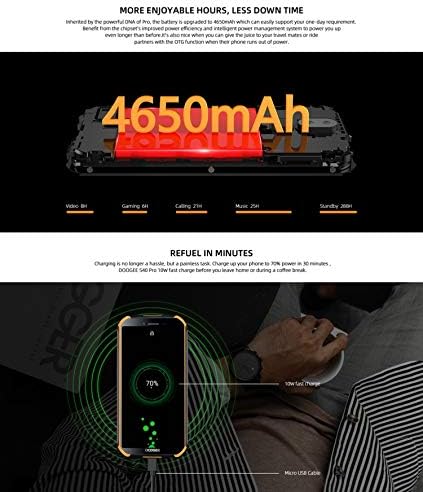
Image: The DOOGEE S40 Pro connected to a charger, showing the charging animation and battery percentage.
1.4 पावर ऑन/ऑफ
- पावर ऑन करने के लिए: Press and hold the Power button (located on the right side) until the DOOGEE logo appears.
- बिजली बंद करने के लिए: पावर बटन को तब तक दबाकर रखें जब तक पावर ऑप्शन मेनू दिखाई न दे। "पावर ऑफ" चुनें और पुष्टि करें।
- पुनः शुरुआत करने के लिए: पावर ऑप्शन मेनू से, "रीस्टार्ट" चुनें और पुष्टि करें।
2. संचालन निर्देश
2.1 बुनियादी नेविगेशन
The DOOGEE S40 Pro operates on Android 10.0 and uses a touchscreen for navigation.
- नल: Touch the screen once to select an item or open an application.
- स्वाइप करना: पृष्ठों या सूचियों को स्क्रॉल करने के लिए अपनी उंगली को स्क्रीन पर ड्रैग करें।
- पिंच-टू-ज़ूम: स्क्रीन पर दो उंगलियां रखें और ज़ूम इन या ज़ूम आउट करने के लिए उन्हें अलग-अलग या एक साथ ले जाएं।
- देर तक दबाना: Press and hold an item to access additional options or move icons.
2.2 कॉल और संदेश
- फोन करना: फ़ोन ऐप खोलें, नंबर दर्ज करें और कॉल आइकन पर टैप करें.
- कॉल प्राप्त करना: Swipe up to answer or down to decline an incoming call.
- संदेश भेजना: Open the Messages app, tap the new message icon, enter the recipient and message, then tap send.
2.3 कैमरा उपयोग
The S40 Pro features dual rear cameras (13MP Sony primary sensor + 2MP portrait camera) and a front camera for selfies.

Image: Diagram highlighting the AI Rear Dual Camera setup on the DOOGEE S40 Pro, showing the 13MP Sony sensor and 2MP portrait camera, along with exampले तस्वीरें.
- अपनी होम स्क्रीन या ऐप ड्रॉअर से कैमरा ऐप खोलें।
- कैमरा स्विच आइकन का उपयोग करके फ्रंट और रियर कैमरे के बीच स्विच करें।
- फ़ोटो लेने के लिए शटर बटन पर टैप करें.
- Explore different modes like Portrait, Video, and Panorama.
2.4 फ़िंगरप्रिंट अनलॉक
The device includes a rear-mounted fingerprint sensor for quick and secure unlocking.

Image: Illustration of the fingerprint unlock feature on the DOOGEE S40 Pro, showing a finger interacting with the rear-mounted sensor.
- जाओ सेटिंग्स > सुरक्षा और स्थान > अंगुली की छाप.
- अपना फ़िंगरप्रिंट पंजीकृत करने के लिए ऑन-स्क्रीन निर्देशों का पालन करें।
- Once registered, simply place your finger on the sensor to unlock the phone.
2.5 एनएफसी और गूगल पे
The DOOGEE S40 Pro supports NFC (Near Field Communication) for convenient data transmission and mobile payments like Google Pay.

Image: Visual representation of NFC functionality for Google Pay and data transmission, and the 3.5mm headphone jack on the DOOGEE S40 Pro.
- To enable NFC: जाओ सेटिंग्स > जुड़ी हुई डिवाइसेज > एनएफसी और इसे चालू करें।
- Google Pay: Ensure Google Pay is set up with your payment methods. Tap your phone to compatible terminals for contactless payments.
2.6 कनेक्टिविटी
- वाईफ़ाई: वायरलेस नेटवर्क से कनेक्ट करें सेटिंग्स > नेटवर्क और इंटरनेट > वाईफ़ाई.
- ब्लूटूथ: ब्लूटूथ डिवाइस के साथ युग्मित करें सेटिंग्स > जुड़ी हुई डिवाइसेज > ब्लूटूथ.
- USB: Connect to a computer using the provided USB cable for file स्थानांतरण या चार्जिंग।
- 3.5 मिमी हेडफोन जैक: Plug in wired headphones for audio.
3. रखरखाव
3.1 Rugged Features and Durability
The DOOGEE S40 Pro is built to withstand harsh conditions, featuring IP68 water and dust resistance and MIL-STD-810G certification for drops and extreme temperatures.

Image: The DOOGEE S40 Pro submerged in water, dropped onto concrete, and surviving a fall, illustrating its IP68 and MIL-STD-810G durability.
- जल प्रतिरोध (IP68): Can withstand submersion up to 1.5 meters for 30 minutes. Ensure all port covers are securely closed before exposure to water.
- Dust Resistance (IP68): धूल के प्रवेश से पूरी तरह सुरक्षित।
- Drop Resistance (MIL-STD-810G): Designed to survive drops from up to 1.2 meters onto hard surfaces.
- तापमान प्रतिरोध: Operates in extreme temperatures from -55°C to 70°C.

Image: The DOOGEE S40 Pro shown in extreme cold (-55°C) and hot (70°C) environments, highlighting its robust temperature tolerance.
3.2 अपने डिवाइस की सफाई
To clean your DOOGEE S40 Pro:
- स्क्रीन और बॉडी को मुलायम, लिंट-फ्री कपड़े से पोंछें।
- जिद्दी गंदगी के लिए, डीampकपड़े को पानी से हल्का गीला कर लें। कठोर रसायनों या खुरदरी सामग्री का प्रयोग करने से बचें।
- If the device has been exposed to saltwater, rinse it thoroughly with fresh water and dry it completely before charging.
3.3 सॉफ़्टवेयर अद्यतन
बेहतर प्रदर्शन और सुरक्षा सुनिश्चित करने के लिए नियमित रूप से सॉफ्टवेयर अपडेट की जांच करें।
- जाओ सेटिंग्स > प्रणाली > सिस्टम का आधुनिकीकरण.
- Follow the on-screen prompts to download and install any available updates. Ensure your device has sufficient battery and a stable internet connection during updates.
4। समस्या निवारण
| संकट | संभावित स्थिति |
|---|---|
| डिवाइस चालू नहीं होता है। | Ensure the battery is charged. Connect to a charger and wait a few minutes before attempting to power on again. If unresponsive, try a forced restart by holding the Power button for 10-15 seconds. |
| बैटरी जल्दी ख़त्म हो जाती है. | Check for background apps consuming power. Reduce screen brightness. Disable Wi-Fi, Bluetooth, or GPS when not in use. Perform a software update. |
| वाई-फाई से कनेक्ट नहीं हो सकता. | सुनिश्चित करें कि वाई-फाई चालू है। अपने राउटर और फोन को रीस्टार्ट करें। नेटवर्क को अनचेक करें और दोबारा कनेक्ट करें। |
| फोन धीमा चल रहा है या प्रतिक्रिया नहीं दे रहा है। | Close unnecessary background apps. Clear cache. Restart the device. If issues persist, consider a factory reset (back up data first). |
| कैमरा काम नहीं कर रहा है। | Restart the phone. Clear the Camera app's cache and data in Settings > Apps. Ensure no other app is using the camera. |
5. विनिर्देश
Key technical specifications for the DOOGEE S40 Pro:
- मॉडल नाम: एस40 प्रो
- ऑपरेटिंग सिस्टम: एंड्रॉइड 10.0
- प्रदर्शन: 5.45 inches, LCD, 1440 x 720 resolution
- टक्कर मारना: 4 जीबी
- आंतरिक स्टोरेज: 64 जीबी (माइक्रोएसडी के माध्यम से विस्तार योग्य)
- बैटरी: 4650एमएएच
- पीछे का कैमरा: Dual Back Cameras (13MP Sony primary + 2MP portrait)
- फ्रंट कैमरा: हाँ
- प्रोसेसर: Octa Core (CPU speed: 1.8 GHz, CPU model: Snapdragon)
- कनेक्टिविटी: 4G Cellular, Wi-Fi, Bluetooth, USB, GPS, NFC
- विशेष लक्षण: Touchscreen, Fingerprint Sensor, 3.5mm Headphone Jack
- स्थायित्व: IP68 Water & Dust Resistant, MIL-STD-810G Drop Resistant
- रंग: काला
- बॉक्स में क्या है: Adapter, USB Cable
6. वारंटी और समर्थन
For warranty information and customer support, please refer to the warranty card included in your product package or visit the official DOOGEE webवारंटी दावों के लिए अपनी खरीद का प्रमाण संभाल कर रखें।
- अधिकारी Webसाइट: www.doogee.cc (कृपया ध्यान दें: यह एक प्लेसहोल्डर है) URL, refer to your product's specific documentation for the correct support webसाइट।)
- ग्राहक सेवा: Contact details may be found on the official webसाइट या आपके वारंटी कार्ड।